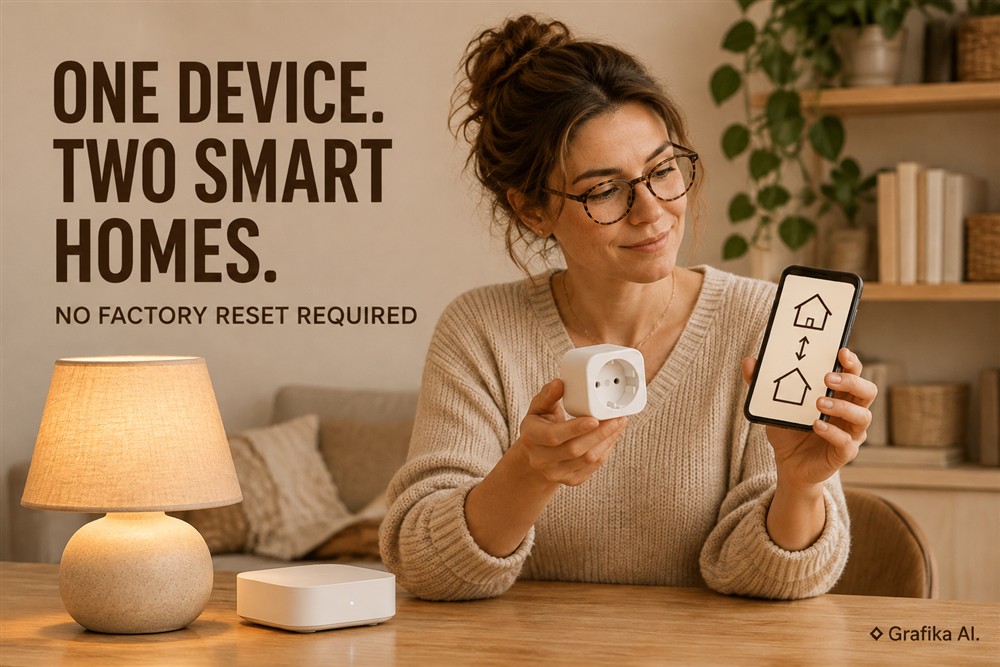
An existing Matter device does not need to be erased just because you want to use it with another smart home platform. A smart plug already connected to Apple Home can also appear in Google Home. A Matter light managed through SmartThings can be added to Alexa without repeating the original installation. The mechanism that makes this possible is Matter Multi-Admin, a feature designed to let multiple independent smart home ecosystems control the same physical device.
The important distinction is that adding a second platform is not the same as moving a device from one platform to another. The original connection remains active, while the new platform receives its own authorization. No factory reset, new Wi-Fi configuration or physical re-pairing is normally required. The process depends on generating a temporary pairing code from the platform that already controls the device and using it in the second ecosystem.
What Matter Multi-Admin Actually Changes
Matter Multi-Admin allows one physical device to belong to multiple independently managed Matter networks, known technically as fabrics. Each fabric has its own security credentials, administrator and controller. The device retains its existing configuration while accepting authorization from another platform.
For example, consider a Matter smart plug initially configured in Google Home. After commissioning, Google Home holds the credentials needed to administer that device. If you subsequently want to use the same plug in Apple Home, you do not remove it from Google Home. Instead, Google Home opens a temporary commissioning window, allowing Apple Home to establish its own secure relationship with the plug.
The result is straightforward:
-
Google Home continues to recognize and control the plug.
-
Apple Home receives independent access to the same physical device.
-
The existing Wi-Fi or Thread connection is retained.
-
Both platforms can display the device’s current operating state.
-
Each platform manages its own rooms, names, automations and user permissions.
This distinction matters because Matter Multi-Admin does not duplicate the device. There is one physical endpoint, one set of operational functions and a shared device state. If an automation in Google Home switches off the plug, Apple Home will also reflect its new state.
There are, however, practical limitations. Different platforms do not necessarily expose identical controls. A thermostat might offer temperature adjustment in both ecosystems, while a manufacturer-specific operating mode is available only in its original application. The Matter standard defines interoperable device functions, but individual platforms decide which supported functions they expose.
The device must also support multi-fabric commissioning, and the second platform must support its Matter device category. Having a Matter logo on the packaging does not guarantee that every advanced feature will appear in every application.
Matter 1.6, released in June 2026, introduced Joint Fabric, a further approach to sharing device administration through a common network and datastore. However, this is a separate implementation that requires ecosystem and product support. For existing installations, the established Multi-Admin pairing-code procedure remains the practical method.
The Correct No-Reset Sharing Procedure
The most important part of the process happens in the application that already controls the device. Starting directly in the second application and repeatedly scanning the original QR code is a common mistake.
Before generating a new code, check four things:
-
Matter compatibility: Confirm that the device was actually commissioned as a Matter device, rather than connected through a manufacturer’s proprietary cloud integration.
-
Firmware: Install available firmware updates for the device and update both smart home applications.
-
Second-platform controller: Make sure the target ecosystem has a compatible Matter controller. Depending on the platform, this function may be provided by a smart speaker, display, hub or another supported controller.
-
Network access: Confirm that the device and controllers can communicate over the local network. Thread-based products additionally need an appropriate Thread Border Router.
Once these conditions are met, follow the sharing procedure.
Step 1: Generate a new pairing code in the original platform
Open the application that currently manages the device. Find its settings and look for an option such as Share Device, Pairing Mode, Share with Other Services or Add Another Platform.
The exact location depends on the ecosystem.
-
Google Home: Open the device tile, enter its settings and select Linked Matter apps & services, followed by Link apps & services. Choose the second supported platform. Alternatively, use Pairing Code or Share with QR Code to generate temporary commissioning credentials.
-
Amazon Alexa: Open Devices, select the Matter device, go to Other Assistants and Apps, and choose Add another. Alexa generates an 11-digit pairing code that remains valid for 15 minutes.
-
Samsung SmartThings: Open the device, enter its settings and select Share with other services. Choose the sharing option to generate a QR code or numeric pairing code.
-
Home Assistant: Navigate to Settings > Connectivity > Matter > Devices, select the device and choose Share device. Confirm the operation to generate the sharing credentials.
-
Apple Home: When adding an already commissioned Matter accessory, open Home, select Add Accessory and then More Options. Select the existing accessory and follow the instructions to generate the required code through its existing controller or accessory application.
These are examples of the current application workflows. Menu labels can change between operating system and application releases.
Step 2: Use the newly generated code
A typical Matter sharing code contains 11 numeric digits, although some applications offer a QR code instead.
This is a temporary authorization mechanism, not a permanent device password. The commissioning window expires, and its duration depends on the controller and device implementation. As a practical guide, expect approximately 5–15 minutes rather than an unlimited pairing period.
Copy the code immediately or keep the QR code available. In some implementations, the original application must remain open on the sharing screen while the second controller completes commissioning.
Do not generate several different pairing codes in multiple applications at the same time. An active commissioning window can prevent another one from being opened successfully.
Step 3: Add the device in the second ecosystem
Now open the application you want to use as the additional controller.
Choose its Matter device installation option. Instead of scanning the QR code printed on the device or its packaging, select the option to enter an existing pairing code or scan a newly generated sharing QR code.
Enter the code and follow the commissioning instructions.
The second platform establishes its own Matter fabric membership. It does not need to erase the original platform’s credentials or replace the existing network configuration.
If commissioning succeeds, assign the device to a room and give it a recognizable name. You can use a different name from the one in the original application.
Step 4: Verify both connections
Do not finish the procedure immediately after the second application displays a successful installation message.
Check the following:
-
The device remains visible in the original application.
-
The device appears in the second application.
-
Switching it on or off in either application updates its state in the other.
-
The device remains reachable after a short power interruption, if testing this is practical.
-
Existing automations in the original platform still execute correctly.
Keep the original platform connected. Removing its device entry is unnecessary and can eliminate the very fabric membership you intended to preserve.
Troubleshooting: Fix the Sharing Path Before Resetting Anything
When a second platform cannot find an existing Matter device, the problem is usually related to commissioning credentials, network discovery or compatibility. A factory reset should not be the first troubleshooting action.
An incorrect or expired pairing code
This is the first issue to eliminate.
The original QR code supplied with the product is intended for initial commissioning. Once the device has been configured, it should not be treated as a reusable code for adding further platforms.
Generate a fresh sharing code in the application that currently controls the device. If the previous code has expired, open a new commissioning window.
For example, Alexa explicitly provides a 15-minute validity period for its generated 11-digit code. Some Google Home and SmartThings sharing implementations use shorter or different windows.
If the second application rejects the code, check that it was generated from the existing controller rather than copied from the packaging.
IPv6 and local network discovery problems
Matter relies on local IP communication, including IPv6 and multicast DNS (mDNS) for device discovery. A working internet connection does not automatically mean that the local network is configured correctly.
Pay particular attention to these settings:
-
IPv6 support must be enabled on the local network.
-
Multicast and mDNS traffic must not be unnecessarily blocked.
-
Wi-Fi client isolation should not prevent controllers from reaching devices.
-
Guest Wi-Fi networks should not separate the device from the Matter controllers.
-
VLAN rules and multicast filtering must allow the required local communication.
A useful diagnostic approach is to temporarily place the phone, controllers and Wi-Fi Matter device on the same main home network. This removes several common discovery problems.
An internet connection with a public IPv6 address is not required. What matters is functioning local IPv6 communication.
Thread devices and missing Border Router support
Thread introduces another compatibility requirement.
A Thread-based Matter device communicates through a low-power mesh network. A Thread Border Router provides the connection between that mesh and the household IP network.
Adding another Matter fabric does not automatically move the device to a different Thread network. Its existing network configuration remains part of the device’s operational configuration.
Consequently, the second ecosystem must have a Border Router capable of reaching the device through its existing Thread network. Simply owning a Thread-capable smart speaker or hub is not sufficient if it operates on an unrelated Thread mesh without the necessary network connectivity.
This is particularly important when combining Apple Home, Google Home and other Thread-based ecosystems. Check Thread network compatibility before assuming that a failed pairing code is the problem.
The device appears, but some functions are missing
Successful commissioning does not guarantee identical functionality across applications.
For instance, one platform might expose a smart light’s on/off state, brightness and colour temperature, while another exposes only some of these controls.
The same limitation can affect thermostats, sensors, locks and devices connected through Matter bridges.
If the original equipment uses Zigbee behind a Matter bridge, the object being shared is generally the bridge’s Matter connection. The individual Zigbee devices appear in the second ecosystem only if the bridge exposes them and the receiving platform supports their relevant functions.
Check the supported Matter device type and features before attempting repeated commissioning.
Firmware and fabric limitations
Some older products have incomplete Multi-Admin implementations. Others require a manufacturer firmware update before they can accept another administrator.
A Matter device also has a finite capacity for storing fabric memberships. Adding controllers is not unlimited, and the actual capacity depends on the implementation.
If the device has already been shared with several ecosystems, check whether it has reached its supported fabric limit.
Restarting the device and updating its firmware are reasonable next steps. They are much less destructive than resetting the product.
A factory reset should be the last resort, reserved for a corrupted configuration or a manufacturer-confirmed recovery procedure. Resetting normally removes existing fabric memberships and network configuration, forcing you to commission the device again and rebuild its platform connections.
Start with the original controller’s sharing option, not the reset button. First verify that the device supports Matter Multi-Admin, then generate a fresh pairing code and check that the second platform has the required Matter controller and network access. If those conditions are satisfied, a factory reset is unnecessary for adding a second smart home ecosystem.
FAQ
Can I add an existing Matter device to two platforms without a factory reset?
Yes. Matter Multi-Admin allows the same physical device to join multiple independently managed platforms. Generate a temporary sharing code in the original application and use it in the second one.
Will the original smart home platform lose control of the device?
No. The original fabric remains active after successful sharing. Both platforms retain their own administrative access to the device.
Can I use the QR code printed on the device again?
Normally, no. The original QR code is intended for initial commissioning or use after a factory reset. For subsequent platforms, generate a new temporary sharing code through an existing controller.
Do automations and room assignments transfer between platforms?
No. Device state is shared, but room assignments, names, routines, scenes and automation rules are managed independently by each ecosystem. You must configure those elements separately.
Does every Matter-certified device support Multi-Admin?
Not necessarily. The device firmware, its implementation of the Matter commissioning functions and the receiving platform must all support the required operation.
Can I add a Thread device without buying another Thread Border Router?
Sometimes. If the second platform can access the existing Thread network through compatible infrastructure, an additional Border Router may not be necessary. If the platform cannot reach that network, you will need compatible Thread infrastructure.
What should I do if the second platform cannot discover the device?
Start by generating a new sharing code. Then check local IPv6, mDNS, network isolation, Thread connectivity and firmware versions. Do not remove the original device or factory-reset it before eliminating these causes.