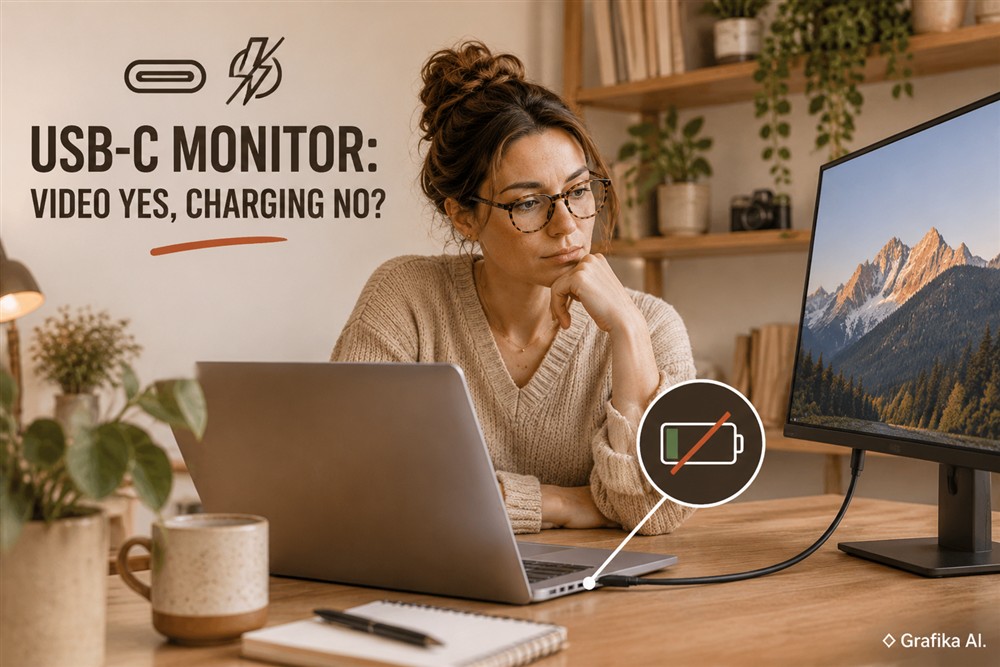
A USB-C monitor can continue displaying a picture after a laptop wakes from sleep while its charging function stops working. The cable is still connected, the external display is detected, and the desktop looks normal, but the battery percentage no longer increases. Sometimes charging returns after reconnecting the cable. In other cases, only a complete restart restores it.
This problem usually involves USB Power Delivery (USB PD) negotiation, monitor standby settings, cable limitations, or firmware handling of the sleep-and-wake sequence. Video transmission and power delivery are separate functions of a USB-C connection, so one can remain operational while the other fails.
The most effective approach is to check the actual charging capability first, isolate the cable and power source, and only then investigate firmware and operating system settings. Reinstalling graphics drivers is rarely the right starting point.
Understand Why USB-C Video Works While Charging Stops
USB-C combines several functions in one connector. Depending on the hardware, a single cable can carry DisplayPort video, USB data, and electrical power through USB Power Delivery.
These functions do not depend on exactly the same signalling mechanisms. DisplayPort Alternate Mode (DP Alt Mode) handles video transmission, while USB Power Delivery negotiates the voltage and current supplied to the connected laptop. A problem with power negotiation does not necessarily interrupt the video signal.
This explains why a monitor can display a perfectly stable image even when the laptop stops receiving power.
There are several common causes.
-
Failed USB PD renegotiation after sleep: When the laptop enters sleep mode, the USB-C controller or monitor may change its power state. After waking, the devices do not always establish a new charging agreement correctly.
-
Monitor deep-sleep settings: Some displays reduce power to their USB-C circuitry when entering standby. The video connection may recover when the monitor wakes, but its charging output may not return immediately.
-
Insufficient power delivery: A monitor rated for 65 W cannot provide the same charging performance as a 90 W or 100 W source. A laptop requiring more power may remain connected without charging properly under heavy workloads.
-
Cable limitations or damage: A cable can support video but fail to deliver the current required for charging. Damaged contacts, poor-quality construction, or inadequate current ratings can cause intermittent problems.
-
Firmware and controller compatibility: The monitor, laptop BIOS, USB-C controller, Thunderbolt controller, or docking station may handle sleep recovery incorrectly.
Before changing anything, establish whether the laptop actually receives no power or simply refuses to charge its battery.
Check the battery status immediately after waking the computer. If Windows reports that the device is plugged in but not charging, check the current battery percentage and any configured charging limits.
For example, some Lenovo Vantage, Dell Power Manager, and ASUS battery management configurations deliberately stop charging around 80%. This is a battery protection feature, not a USB-C fault. If the battery is below the configured limit and charging still does not resume, continue troubleshooting.
Also check the monitor specifications. The presence of a USB-C connector does not guarantee that the port supports laptop charging. Look specifically for the USB-C Power Delivery output rating and confirm that you are using the monitor’s upstream USB-C connection rather than a downstream port intended for peripherals.
Check the Cable, Power Rating, and Connection Before Changing Software
A controlled hardware test eliminates several possible causes without requiring driver changes or a factory reset.
Start by checking the power requirements of both devices.
Compare the monitor’s output with the laptop’s charging requirements.
USB Power Delivery supports different power levels depending on the specification and hardware:
-
60 W: Typically 20 V at 3 A. This is sufficient for many office laptops, but not every model.
-
65 W: A common charging requirement for business laptops and productivity devices.
-
90 W: Provides additional headroom for laptops with more demanding processors and displays.
-
100 W: The maximum standard power level under USB PD 3.0, using 20 V at 5 A.
-
Up to 240 W: USB PD 3.1 Extended Power Range (EPR) supports higher power levels, up to 48 V at 5 A, when the source, receiving device, and cable all support EPR.
These figures are maximum negotiated power levels, not guarantees of continuous charging performance.
For instance, if a laptop expects 90 W through USB-C and the monitor supplies only 65 W, the connection may work but deliver less power than the laptop needs. During intensive work, battery charge can decrease even though the system recognizes an external power source.
Test the USB-C cable separately.
Do not assume that every USB-C cable supports the same functions. A cable advertised as 100 W may support the required charging current but not necessarily DisplayPort video.
For a replacement, look for a cable that explicitly supports:
-
DisplayPort Alternate Mode or compatible USB4 video functionality.
-
USB Power Delivery at the required wattage.
-
5 A current capacity and electronic marking (E-marker) when more than 60 W is required under standard 20 V charging.
-
The appropriate USB-IF certification and stated data capabilities.
For power levels above 100 W, choose an EPR-rated cable and verify that both connected devices support USB PD 3.1 EPR.
A 3 A cable is limited to 60 W at 20 V. A 5 A cable is necessary for standard USB PD charging above that level. This distinction matters particularly with 65 W and 90 W monitors.
The simplest test is to use the original cable supplied with the monitor. If the problem persists, try a known-good, full-featured USB-C cable with sufficient power capacity. Avoid inexpensive charge-only cables and unverified adapters.
Remove additional devices from the connection.
If the laptop connects through a docking station, USB hub, KVM switch, or extension adapter, temporarily remove those devices.
Connect the laptop directly to the monitor using one USB-C cable. Keep the monitor connected to its normal AC power supply.
This test matters because a dock can have its own power budget. Its power supply must operate the dock and connected peripherals while also delivering power to the laptop. A dock rated for 90 W input, for example, may provide less than 90 W to the computer after accounting for its own consumption.
If direct connection restores charging, investigate the dock’s power supply, firmware, and advertised laptop charging output before replacing the monitor.
Reset the USB-C power negotiation.
A complete power cycle can restore a controller that has become stuck after sleep.
Use this sequence:
-
Disconnect the USB-C cable from both the laptop and monitor.
-
Turn off the monitor.
-
Disconnect the monitor from its AC power supply for approximately 30 seconds.
-
Reconnect the monitor to AC power and switch it on.
-
Select the correct USB-C input if the monitor does not select it automatically.
-
Wait approximately 10 seconds.
-
Reconnect the USB-C cable directly to the laptop.
-
Check whether charging resumes.
This procedure forces the monitor’s power circuitry to restart and gives the devices an opportunity to negotiate a new USB PD connection.
If charging returns immediately, the cable and hardware may still be functional. The original problem is more likely related to power-state recovery or USB-C negotiation than to a completely failed charging port.
Fix Sleep Recovery Through Monitor Settings, Firmware, and Operating System Controls
If charging works after a manual reconnection but repeatedly fails after sleep, concentrate on the resume process. Replacing a monitor or laptop at this stage is premature.
Check the monitor’s on-screen settings first.
Open the monitor’s on-screen display (OSD) and look for options related to USB-C power delivery, standby charging, USB power saving, and deep sleep.
Depending on the manufacturer, relevant settings may have names such as:
-
USB-C Charging
-
USB-C Power Delivery
-
USB-C Wake Up
-
USB Charging in Standby
-
Deep Sleep
-
USB Power Saving
Enable USB-C charging or standby power delivery if the monitor offers these options.
As a diagnostic test, temporarily disable Deep Sleep or aggressive USB power saving. Then put the laptop to sleep for several minutes and wake it again.
If charging now resumes reliably, the monitor’s standby configuration is a likely contributor. The trade-off is that disabling deep sleep can increase standby power consumption or leave parts of the USB hub active.
Not every monitor supports charging while in standby. Check the exact model’s manual rather than assuming that changing an OSD setting can enable a feature the hardware does not provide.
Update the monitor and laptop firmware.
Firmware problems are particularly relevant when the failure occurs consistently after sleep but disappears after disconnecting and reconnecting the cable.
Check for updates for:
-
The monitor’s firmware.
-
Laptop BIOS or UEFI.
-
USB-C controller drivers.
-
Thunderbolt or USB4 controller software and firmware, where applicable.
-
Docking station firmware, if the connection uses a dock.
Use the manufacturer’s support page for the exact device model. Dell, Lenovo, HP, ASUS, and other manufacturers provide model-specific firmware and driver packages.
Avoid generic driver updater applications. They can install incompatible packages and make troubleshooting harder.
Before updating the laptop BIOS, connect the original laptop charger and ensure stable power. Do not perform a firmware update while relying on a monitor connection that repeatedly loses charging.
Check Windows power management without changing everything at once.
Windows power management can affect how USB hubs and connected peripherals behave when the computer enters sleep.
If the monitor’s USB hub also disappears after waking, inspect the USB power management configuration.
On systems that expose the relevant option, open:
-
Control Panel.
-
Hardware and Sound.
-
Power Options.
-
Change plan settings.
-
Change advanced power settings.
-
USB settings.
-
USB selective suspend setting.
You can temporarily disable USB selective suspend as a diagnostic test, restart the computer, and repeat the sleep-and-wake test.
However, this setting primarily concerns USB device power management. It is not a universal fix for USB Power Delivery negotiation, and some modern Windows systems do not expose it. If changing it makes no difference, restore the original setting rather than leaving unnecessary power-saving changes disabled.
Also check the laptop manufacturer’s battery management application. Charging thresholds, battery conservation modes, and intelligent charging features can make the system report that it is connected to power but not currently charging.
Use a controlled test to identify which device is responsible.
If the issue remains, test the components independently:
-
Connect the laptop to a known-good USB-C PD charger with sufficient wattage. Check whether charging works after sleep.
-
Connect another compatible laptop to the same monitor and repeat the test.
-
If possible, repeat the test using a different full-featured USB-C cable.
Interpret the results as follows:
| Test result | Most likely area to investigate |
|---|---|
| Laptop charges normally from another USB-C charger but not from the monitor | Monitor PD circuitry, firmware, or cable |
| Another laptop also loses charging after sleep on the same monitor | Monitor firmware or USB-C power controller |
| The original laptop fails with several known-good USB-C power sources | Laptop USB-C port, BIOS, or power management |
| Direct monitor connection works, but connection through a dock fails | Dock power budget, firmware, or cable |
| Reconnecting the cable always restores charging | USB-C power negotiation or sleep recovery |
These tests do not identify every possible hardware defect, but they establish whether the fault follows the monitor, laptop, cable, or dock. That is far more useful than replacing components based on guesswork.
FAQ: USB-C Monitor Charging After Sleep
Why does my USB-C monitor still display video but stop charging my laptop?
Video transmission through DisplayPort Alternate Mode and USB Power Delivery use different signalling functions. The video connection can remain active even when the charging negotiation fails or the monitor stops supplying sufficient power.
Can a USB-C cable support video but not laptop charging?
Yes. A cable may support video but have insufficient current capacity, damaged power-related contacts, or unreliable USB PD operation. Use a full-featured cable rated for the laptop’s required charging wattage.
Why does charging return when I unplug and reconnect the cable?
Disconnecting the cable forces the devices to establish a new USB-C connection and negotiate power again. If this consistently restores charging, investigate monitor standby settings, firmware, and USB-C controller compatibility.
Is 65 W enough to charge a laptop through a monitor?
It depends on the laptop. Many office laptops accept 65 W, but models designed for 90 W or more may charge slowly or lose battery power under heavy workloads. Compare the monitor’s actual PD output with the laptop’s USB-C charging requirements.
Should I disable USB selective suspend permanently?
No. Treat it as a temporary diagnostic test, particularly if the monitor’s USB hub also stops working after sleep. It does not directly solve every USB PD problem.
Do I need to replace the monitor if charging stops after every sleep cycle?
Not immediately. First test another cable, reset the monitor’s power, check its standby settings, and update the relevant firmware. Replace or service the monitor only after testing confirms that the fault follows its USB-C power delivery system.
Start with one specific check: verify that the monitor’s USB-C port supplies enough watts for the laptop and that the original or replacement cable supports the required current. Then connect the devices directly, without a dock, and repeat the sleep-and-wake test. If charging returns only after reconnecting the cable, investigate the monitor’s deep-sleep settings and firmware before spending money on replacement hardware.